Previous Tutorial: Creating a GEF Editor – Part 4: Showing the Model on the Editor
Hi everyone. In this tutorial we will learn how to load the model from an EMF file (Seemed easy but took me some searching to find how this is done, and I’m not sure I’m doing it the best way it could be done), and in the way we’ll also be expanding our model definition to match our requirements. If you didn’t generate your EMF editor code, please do so now, because we’ll be using it to bootstrap our EMF file before we open it using the GEF editor. So let’s get started.
- In the previous tutorial, we used a mock model hard-coded into our diagram, and we also gave the
OPMObjectfigures random locations in our diagram. We’ll fix this in two steps, first by expanding the model’s definition and second by loading the model data from a file. - Now we will add constraints information to the
OPMThingmodel class. This requires three steps: first, we need to add theorg.eclipse.draw2dplugin as a required dependency of thecom.vainolo.phd.opm.modelproject to allow us to use the classes in this library in our model (an example how to add new dependencies is was shown in the 3rd tutorial). Second, we define a newEData Type, which is the way to connect Ecore models with existing data types outside the model. And third, the constraints attribute will be added to theOPMThingmodel class. - Right-click on the package node of the
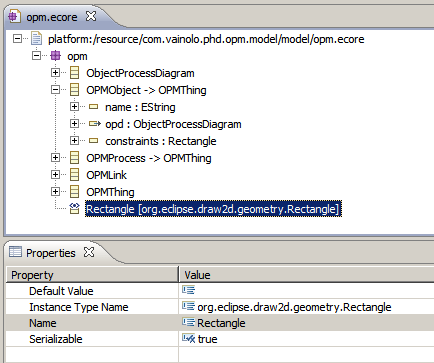
opm.ecoremodel and select “New Child”->”EData Type”. This will add a new entry to the package node as shown below:

As usual, the properties of this node are edited in the properties view of the eclipse framework, so if they are not already open double click on the new node to open the properties editor. The data type we are defining is a connection to theRectanglethat is defined inorg.eclipse.draw2d.geometrypackage, so we’ll name our new data type “Rectangle” and will set the “Instance Type Name” property toorg.eclipse.draw2d.geometry.Rectangle. - Now add a new attribute to the
OPMObjectclass called “constraints” and set itsETypetoRectangle(if you forgot how to do this, go to the first tutorial for a short reminder). Your model should now look like this:

- Save the Ecore model and generate all code from the genmodel file. This is good but we are still missing one piece in the puzzle. Although the EMF framework know how to reference the
Rectangleclass, it does not know how to serialize this class to aString, which is one of the thing that EMF has to do. Therefore we must provide one implementation ourselves by editing the code generated by the EMF framework. You are probably saying “Hey, you’ll edit the EMF code and next time you generate the model code the core you wrote will be erased and you will have to write it again! This is a nightmare!!!”. But no. See, EMF code generation is very smart. The code generated by the EMF framework contains comment annotations (that is, annotations that are part of the comments of a class/method/type) that can be read by the framework before new code is generated. In general, all generated code is annotated with the@generatedannotation, so if we want to change the generated code, we simply append “NOT” after the comment and in the next time code is generated, this function will not be overwritten by the code generator. Nice, ah? So lets get going. Open thepackage com.vainolo.phd.opm.model.impl.OPMFactoryImplfound in thecom.vainolo.phd.opm.modelproject. There are two functions that must be re-written:createRectangleFromStringandconvertRectangleToString. I decided to represent a rectangle as a comma separated lists of values: “x,y,width,height”, as shown in the code below:/** * <!-- begin-user-doc --> * Create a <code>Rectangle</code> instance from a <code>String</code>. The expected * representation is "x,y,width,height". Illegal representations will return a null * value. * <!-- end-user-doc --> * @generated NOT */ public Rectangle createRectangleFromString(EDataType eDataType, String initialValue) { if(initialValue == null) { return null; } initialValue.replaceAll("\\s", ""); String[] values = initialValue.split(","); if(values.length != 4) { return null; } Rectangle rect = new Rectangle(); try { rect.setLocation(Integer.parseInt(values[0]), Integer.parseInt(values[1])); rect.setSize(Integer.parseInt(values[2]), Integer.parseInt(values[3])); } catch(NumberFormatException e) { EcorePlugin.INSTANCE.log(e); rect = null; } return rect; } /** * <!-- begin-user-doc --> * Convert a <code>Rectangle</code> to a <code>String</code> representation. The * <code>Rectangle</code> is represented as "x,y,width,heigth". * <!-- end-user-doc --> * @generated NOT */ public String convertRectangleToString(EDataType eDataType, Object instanceValue) { if(instanceValue == null) { return null; } Rectangle rect = (Rectangle) instanceValue; return rect.x+","+rect.y+","+rect.width+","+rect.height; }Please save all of your work. I you want, you can check that the code generation does work as expected by re-generating the code and checking that the
OPMFactoryImplclass still contains the code marked by@generated NOT. - We are done with the model, now we must load the model file into our diagram editor. For this, we’ll override the
GraphicalEditor.initmethod, which is called shortly after theEditPartis instantiated, and is provided by the eclipse workbench with an instance of anIEditorInputclass from where we can fetch our model. But before we do this, we must add two more plug-in dependencies to our project:org.eclipse.ui.ideandorg.eclipse.core.resources. So add the dependencies and override theGraphicalEditor.initwith the following code:@Override public void init(IEditorSite site, IEditorInput input) throws PartInitException { super.init(site, input); OPMPackage.eINSTANCE.eClass(); // This initializes the OPMPackage singleton implementation. ResourceSet resourceSet = new ResourceSetImpl(); if(input instanceof IFileEditorInput) { IFileEditorInput fileInput = (IFileEditorInput) input; IFile file = fileInput.getFile(); opdResource = resourceSet.createResource(URI.createURI(file.getLocationURI().toString())); try { opdResource.load(null); opd = (ObjectProcessDiagram) opdResource.getContents().get(0); } catch(IOException e) { // TODO do something smarter. e.printStackTrace(); opdResource = null; } } }We have also added two class fields to hold the model and the resource from where the model was loaded:
	private Resource opdResource;
	private ObjectProcessDiagram opd;
Changed the source of contents of the diagram (in the
initializeGraphicalViewermethod):@Override protected void initializeGraphicalViewer() { super.initializeGraphicalViewer(); getGraphicalViewer().setContents(opd); }and of course, added lots of imports:
import java.io.IOException;

import org.eclipse.core.resources.IFile;
import org.eclipse.core.runtime.IProgressMonitor;
import org.eclipse.emf.common.util.URI;
import org.eclipse.emf.ecore.resource.Resource;
import org.eclipse.emf.ecore.resource.ResourceSet;
import org.eclipse.emf.ecore.resource.impl.ResourceSetImpl;
import org.eclipse.gef.DefaultEditDomain;
import org.eclipse.gef.palette.PaletteRoot;
import org.eclipse.gef.ui.parts.GraphicalEditorWithFlyoutPalette;
import org.eclipse.ui.IEditorInput;
import org.eclipse.ui.IEditorSite;
import org.eclipse.ui.IFileEditorInput;
import org.eclipse.ui.PartInitException;

import com.vainolo.phd.opm.gef.editor.part.OPMEditPartFactory;
import com.vainolo.phd.opm.gef.utils.OPMModelUtils;
import com.vainolo.phd.opm.model.OPMPackage;
import com.vainolo.phd.opm.model.ObjectProcessDiagram;
After all this, your code should now compile with no errors.
- Last thing we need to do is read the constraints information from our model into our figures. Open the
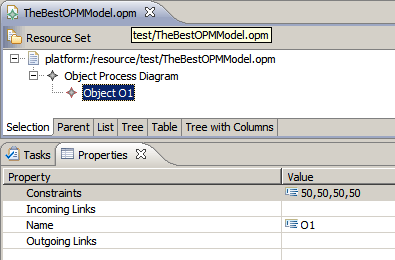
OPMObjectEditPartand replace therefreshVisualsmethod with the following code:@Override protected void refreshVisuals() { OPMObjectFigure figure = (OPMObjectFigure)getFigure(); OPMObject model = (OPMObject)getModel(); ObjectProcessDiagramEditPart parent = (ObjectProcessDiagramEditPart) getParent(); figure.getLabel().setText(model.getName()); Rectangle layout = new Rectangle(model.getConstraints().x, model.getConstraints().y, model.getConstraints().width, model.getConstraints().height); parent.setLayoutConstraint(this, figure, layout); } - Name: O1
- Constraints: 50,50,50,50
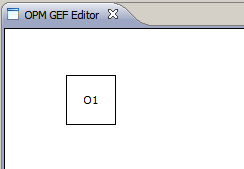
- This is it. Right-click on your model file and select “Open With”->”OPM GEF Editor”. You should now see your object in the location you placed it.

You can add more objects using the EMF editor and see the result (note that the diagram does not refresh automatically so you must close it and open it again to see the changes in the model. Refreshing the editor is something that will be handled in a future tutorial

Good. But before we can see our OPMObjects in our diagram, we must define them constraints. We’ll be doing this in the “OPM Model Editor” that is automatically generated by the EMF framework. So please execute the project, right-click on the model source file (in my case “TheBestOPMModel.opm”), and select “Open With”->”OPM Model Editor” (ignore problems that may occur while initializing the “OPM GEF Editor” and close it if it is open. They are probably caused by a malformed input file that does not contain yet the constraints field):

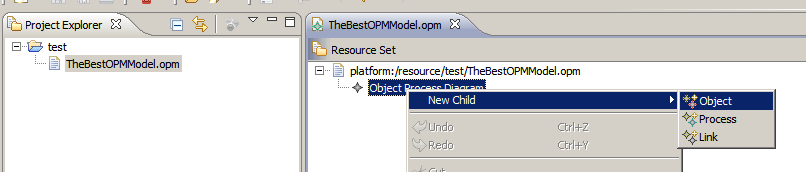
This model editor looks very similar to the Ecore editor, and this is because they are both based on the same framework, so you should already know how to work with it. Navigate to the “Object Process Diagram” node on the editor, right-click and select “New Child”->”Object”:
Now fill up the Object’s properties (in the properties view). I set them as follows:
The final eclipse project files can be downloaded here.
That’s all for today. If you have any problems, don’t hesitate to leave a comment. And thank you for your visit.
Next Tutorial: Creating a GEF Editor – Part 6: Model Refactoring and Editing Diagram Entities